How to Get Clips from YouTube Videos: A Complete Repurposing Guide
Learn how to get clips from YouTube videos using native tools, video editors, and assistive AI workflows to reframe and caption vertical highlights.
Updated By ClipFlap editorial team
Long-form video production demands serious effort, from scriptwriting and set lighting to recording and final editing. Yet publishing a 45-minute podcast episode or detailed tutorial to your channel is often just the beginning of its distribution cycle. If you want your material to reach new audiences on mobile-first feeds, knowing how to get clips from youtube videos you have already produced is an essential editorial skill.
Extracting punchy, standalone highlights allows creators to repurpose YouTube content across platforms like YouTube Shorts, TikTok, and Instagram Reels without starting from scratch. However, simply slicing a random 30-second chunk rarely succeeds. You need a systematic workflow that preserves narrative context, adapts horizontal footage for vertical screens, and ensures accurate subtitles.
This guide outlines three reliable workflows to make clips from YouTube videos you own, covers crucial reframing techniques, and provides a quality-control framework before you publish.
Understanding the Common Methods to Clip Your YouTube Videos
Isolating short-form highlights from your source material generally falls into three operational tiers. Each method suits different production volumes, technical requirements, and distribution strategies.
- Native Platform Tools: Fast, lightweight tools inside YouTube Studio or the mobile app designed to create shorts from YouTube videos directly on the platform.
- Manual Non-Linear Editors (NLEs): Traditional desktop software like Adobe Premiere Pro, DaVinci Resolve, or Final Cut Pro, offering pixel-level control over cuts, color grading, and framing.
- Assistive AI Workflows: Specialized software that relies on transcript-based highlight selection, automated speaker tracking, and subtitle generation to streamline high-volume content repurposing.
Choosing the right path depends on whether you need a quick single-platform teaser, a broadcast-grade multi-camera cut, or a repeatable pipeline to extract clips from YouTube archives efficiently.
Method 1: Creating Quick Shorts via YouTube Native Tools
If your goal is purely to direct YouTube mobile viewers back to an existing long-form upload, YouTube offers built-in tools to extract snippets.
How the Mobile Native Flow Works
From the YouTube mobile app, creators viewing their own uploaded long-form videos can access the Remix button directly beneath the video player:
- Tap Remix and select Edit into a Short.
- Use the timeline slider to select a segment up to 60 seconds in length.
- Adjust the pan-and-crop window to align your subject within the vertical frame.
- Add in-app text overlays or filters if necessary, then publish.
Advantages and Constraints
This approach requires no separate video files or third-party editing tools. The resulting Short automatically includes a clickable link pointing viewers directly to your original full-length video.
However, the native tool has distinct limitations. You cannot easily export that rendered clip to publish natively on other platforms without YouTube branding or interface constraints. Furthermore, subtitle styling options are minimal, and reframing dynamic scenes with multiple speakers requires careful manual positioning within a tiny mobile preview window.
Method 2: Manual Clipping in Traditional Video Editing Software
When visual precision, branded layouts, and granular audio control are paramount, working inside an NLE remains the industry standard.
Step-by-Step Desktop Workflow
- Retrieve the Source Media: Rather than downloading compressed video files from the web, locate your original master export or download your high-resolution original file via YouTube Studio.
- Set Up a Vertical Sequence: Create a new project timeline configured to a 9:16 aspect ratio (typically 1080x1920 pixels).
- Isolate the Highlight: Scrub the footage to locate a self-contained conversational segment. A viable clip needs a strong hook in the opening three seconds and a clear resolution.
- Apply Vertical Video Reframing: Horizontal 16:9 footage will not fill a 9:16 canvas naturally. You must scale the footage and keyframe horizontal position changes to follow the speaker, or create a stacked composition featuring both the speaker and visual aids.
- Generate Captions: Use the NLE's transcription engine to build subtitles, then manually adjust line breaks and font styling for mobile legibility.
Manual editing offers complete artistic freedom. However, re-watching hours of footage to spot isolated insights and manually keyframing speaker movement across dozens of clips demands significant production hours.
Method 3: Assistive AI Workflows for Transcript-Based Clipping
Creators and media teams who publish regular podcasts, webinars, or interviews often encounter bottlenecks during the clip discovery and formatting stages. Assistive AI tools address this by analyzing speech patterns and spoken transcripts rather than requiring you to scrub raw timelines manually.
Platforms such as ClipFlap allow creators to upload long filmed videos or podcast footage to generate vertical candidate clips. By reading our detailed breakdown on how to clip a YouTube video with AI, you can see how speech modeling identifies thematic discussions, question-and-answer pairs, and structured points.
Traditional NLE Workflow:   [Re-watch full video] -> [Manual cut] -> [Manual keyframe reframing] -> [Manual subtitles]
Assistive AI Workflow:      [Transcript indexing] -> [Auto-suggested segments] -> [Speaker auto-reframing] -> [Manual review & export]
These systems assist with three critical tasks:
- Transcript-Based Highlight Selection: Scanning the spoken text makes it straightforward to pinpoint exact conversational exchanges without replaying the entire recording.
- Automated Reframing: Visual tracking algorithms detect the active speaker's face and maintain 9:16 centering without manual motion keyframing.
- Word-Timed Captions: Spoken audio is synchronized with on-screen text, matching the pacing expected on short-form feeds.
While software accelerates extraction, human oversight remains necessary. Automated systems cannot fully judge comedic timing, nuanced editorial context, or brand sensitivity. Treat automated clip selection as a draft stage that requires manual clip review prior to distribution.
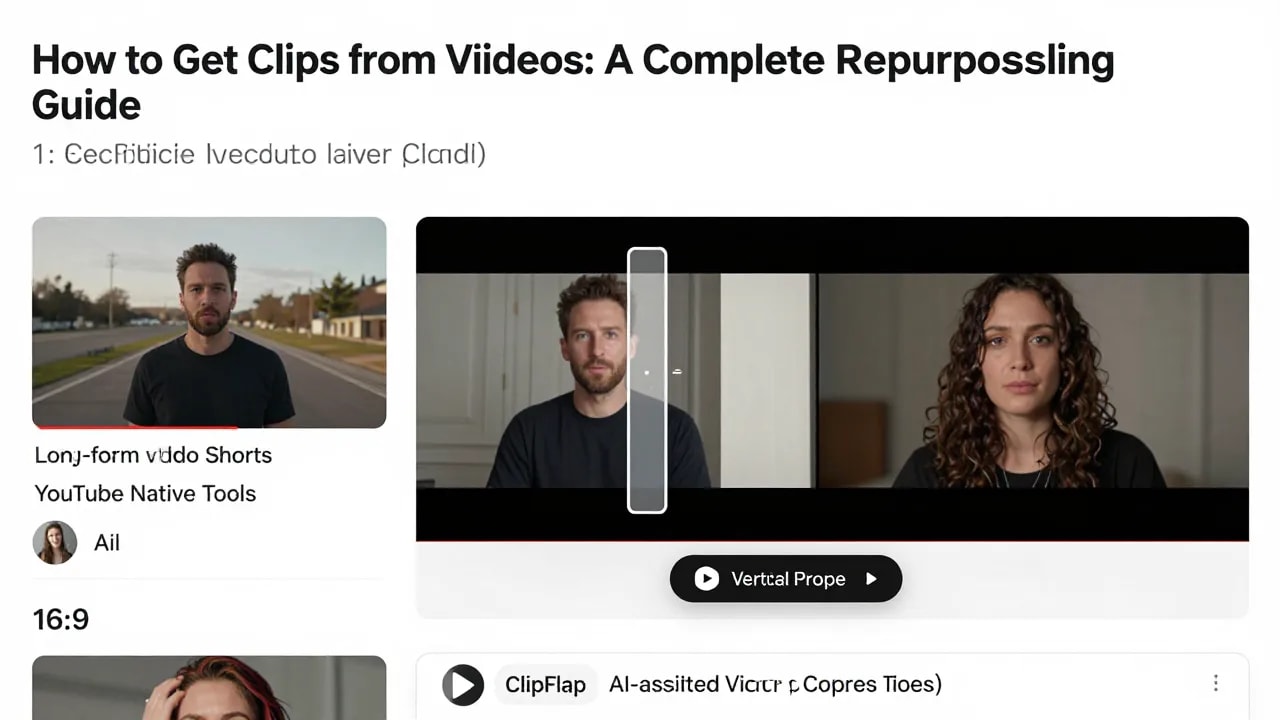
Essential Post-Extraction Adjustments: Reframing and Captions
Regardless of which tool you use to clip long YouTube video material, raw segments require specific adjustments before they are ready for social platforms.
Perfecting 9:16 Vertical Video Reframing
Converting landscape video into vertical orientation presents a geometric challenge. Cropping into a 16:9 frame discards roughly two-thirds of the horizontal image area.
- Single-Speaker Shots: Keep the subject’s eyeline in the upper third of the vertical frame. Leaving excessive empty space above the head reduces visual presence on small mobile screens.
- Multi-Host Interviews: Avoid shrinking the video down to fit inside black letterbox bars. Instead, use split-screen layouts where both speakers are stacked vertically, or employ speaker-tracking cuts that switch perspectives based on who is speaking.
Implementing Word-Timed Captions
A substantial portion of social media video is consumed without audio. Accurate, synchronized text ensures your message registers immediately.
- Keep caption lines short (typically two to four words visible simultaneously) so text does not obscure the speaker's face.
- Maintain strong contrast between your caption font and the underlying video by using drop shadows or background banners.
- Proofread specialized terminology, guest names, and jargon that automatic speech recognition systems routinely misinterpret.
Preserving Standalone Context
When pulling a fragment from a wide-ranging discussion, ensure the clip does not misrepresent the speaker's overarching point. A clip must function as a complete, micro-narrative: it introduces a premise, delivers an example or explanation, and concludes with an actionable or memorable resolution.
Workflow Criteria: How to Choose the Right Clipping Approach
To decide which workflow best suits your current production setup, evaluate your channel's specific operational needs against this decision framework:
| Criteria | Native YouTube Tools | Traditional NLE (Premiere/Resolve) | Assistive AI (e.g., ClipFlap) |
|---|---|---|---|
| Primary Output | YouTube Shorts only | Cross-platform master exports | Cross-platform vertical clips |
| Turnaround Time | Immediate (in-app) | High (hours per clip batch) | Moderate (review-based) |
| Reframing Flexibility | Basic manual crop | Complete keyframe control | Automated face-tracking |
| Caption Customization | Minimal styling | Deep manual typography control | Dynamic, word-timed presets |
| Best Suited For | Solo creators driving channel clicks | Complex edits, mixed media, teams | High-volume podcasts, webinars |
If you produce single-camera solo vlogs occasionally, YouTube's native remixing may be entirely adequate. If you manage an episodic video podcast with weekly episodes, using dedicated tools like a YouTube clip maker provides a much more scalable pipeline for batch processing.
Best Practices for Reviewing and Refining Clips Before Publishing
Before publishing extracted clips to your public profiles, run through this pre-flight checklist to maximize viewer retention and maintain editorial integrity:
- Check the Hook (0–3 Seconds): Does the video immediately present a problem, intriguing statement, or clear topic without conversational filler like "um" or "like I said earlier"?
- Verify Speaker Centering: Does the 9:16 frame stay focused on the speaker during hand gestures or posture shifts, without unnatural edge clipping?
- Audit Subtitle Accuracy: Are all guest names, acronyms, and brand mentions spelled correctly in the transcript?
- Check UI Safe Zones: Ensure critical visual elements—like the speaker’s mouth or primary text—are not covered by platform UI elements (such as TikTok's sidebar icons or Instagram's bottom caption area).
- Confirm Narrative Integrity: Does the excerpt accurately reflect your source material's argument without cutting off critical counterpoints?
Taking three to five minutes to refine an extracted segment prevents embarrassing transcript errors and ensures your content delivers genuine value in a fast-moving feed.
Frequently Asked Questions
Can I legally clip any video found on YouTube?
No. You should only extract and publish clips from footage you personally created or for which you hold explicit commercial distribution rights. Clipping third-party content without permission can trigger copyright strikes, Content ID claims, or legal takedown requests under intellectual property laws.
What is the ideal video length for clips pulled from long YouTube videos?
For vertical platforms like Shorts, Reels, and TikTok, the most effective clips typically run between 30 and 60 seconds. This provides enough room to establish a clear context and deliver a satisfying payoff while maintaining high audience retention rates.
Why is manual review necessary when using assistive AI clipping tools?
Assistive AI is effective at processing language and recognizing faces, but it cannot fully evaluate nuanced tone, sarcasm, or broader narrative intent. A human editor must verify that the chosen clip start and end points make conversational sense and that the subtitles are entirely accurate.
How do I keep the speaker centered when converting 16:9 video to 9:16 vertical?
In traditional video editors, you achieve this by manually keyframing the horizontal "Position" parameter whenever the subject moves across the frame. When using modern repurposing tools, computer vision algorithms automatically detect faces and center the crop dynamically around the active speaker.
Streamline Your Video Repurposing Pipeline
Repurposing your back catalog of long-form videos is one of the most sustainable ways to build an audience across multiple platforms without burning out on daily production. By pairing transcript-based discovery with diligent manual review, you can highlight your best ideas while preserving the production value of your original recordings.
To turn your long recordings, interviews, and discussions into polished vertical highlights with automated framing and word-timed subtitles, explore the ClipFlap AI clip generator and streamline your editing workflow today.
Related reading
- Clip Finder for Edits: How to Locate the Best Moments in Long Video
Learn how to use a clip finder for edits to locate standalone moments in long recordings, streamline your workflow, and avoid common context traps.
- How to Start Clipping Long Videos for Social Media: A Beginner Workflow
Learn how to start clipping long videos for social media. Follow this step-by-step beginner workflow covering hook detection, 9:16 reframing, and captions.
- YouTube to Clips: A Reusable Workflow for Long Videos
Master a repeatable YouTube to clips workflow. Repurpose long-form video into vertical clips using transcript selection, reframing, and editorial review.
Turn a long video into clips with ClipFlap →
Try it on your own episode
10 free minutes of processing, no card required. Processing time varies with source length and queue load; review each clip before publishing.