YouTube to Clips: A Reusable Workflow for Long Videos
Master a repeatable YouTube to clips workflow. Repurpose long-form video into vertical clips using transcript selection, reframing, and editorial review.
Updated By ClipFlap editorial team
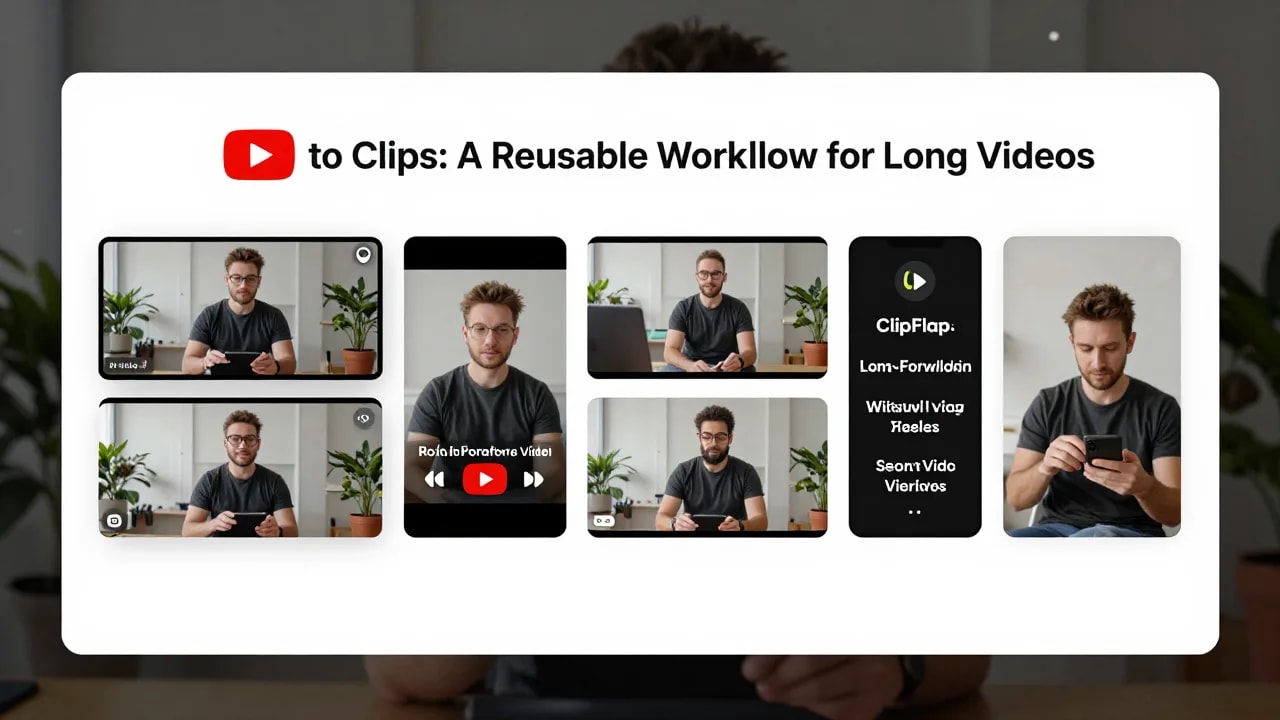
Producing long-form video content requires an enormous investment of research, production, and editing. Yet after publishing a 45-minute interview, conference presentation, or deep-dive tutorial, many creators find that distribution stalls on mobile-first platforms. Transforming a long youtube to clips pipeline into a structured, repeatable production process solves this challenge.
Rather than losing hours scrubbing through dense timelines to isolate short moments, creators can build an efficient youtube clipping workflow. By pairing assistive software for discovery with thoughtful human curation, you can extract high-value segments that perform as standalone videos across mobile feeds without burning out your production team.
1. Native YouTube Clipping vs. a True Video Repurposing Workflow
Before building a repurposing system, it is vital to distinguish between YouTube's built-in sharing features and an actual production pipeline.
YouTube includes a native "Clip" tool directly beneath its video player. This utility allows viewers to highlight a 5-to-60-second section and share a direct link with friends. However, this feature is solely an on-platform engagement bookmark. The clip remains locked in YouTube's 16:9 widescreen player and cannot be downloaded as an independent file or published to other channels.
A true video repurposing workflow, by contrast, transforms your horizontal source material into independent vertical assets. It extracts a coherent segment, adapts it to a 9:16 vertical aspect ratio, adds word-timed captions, and exports a standalone file. If your objective is to repurpose youtube video into shorts or share highlights on mobile feeds, native clipping is insufficient; you need an extraction process designed for multi-platform distribution.
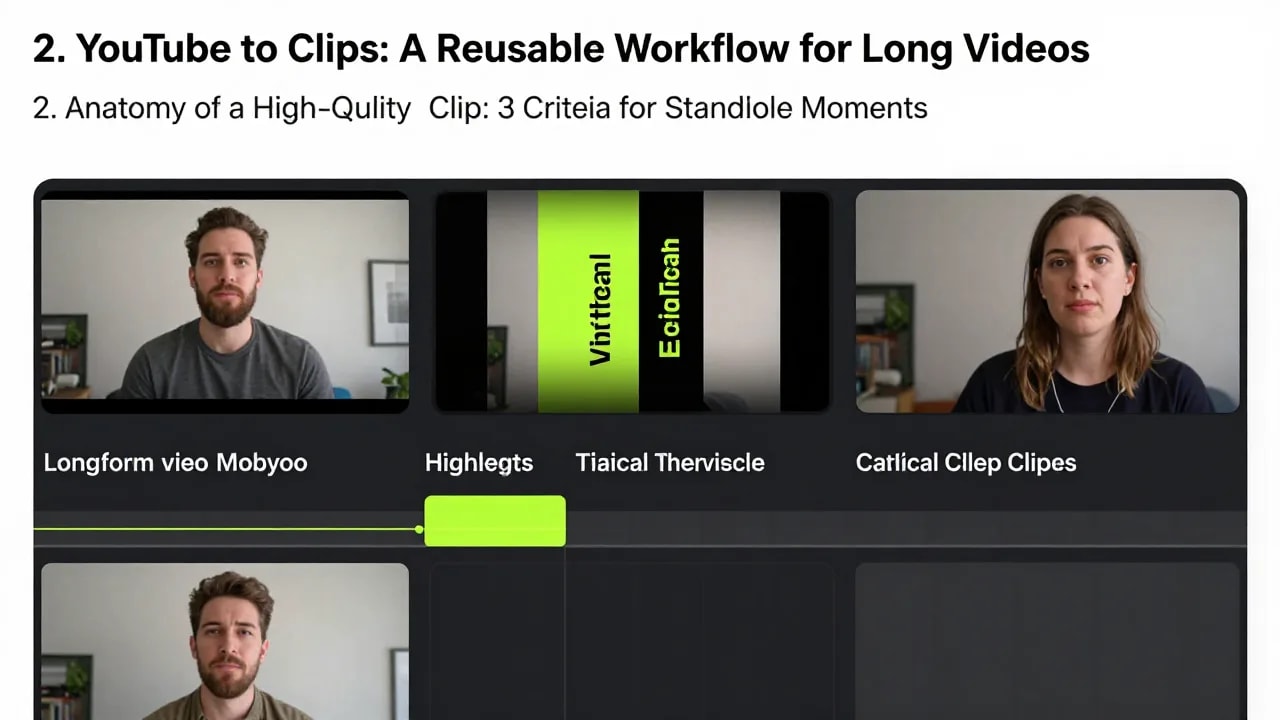
2. Anatomy of a High-Quality Clip: 3 Criteria for Standalone Moments
Not every engaging moment in a 60-minute video works as a short-form clip. In long videos, discussions build upon earlier chapters, meaning isolated excerpts can easily feel disjointed or confusing.
When you turn long youtube videos into clips, prioritize segments that satisfy three essential criteria.
Criterion 1: A Standalone Narrative Arc
A successful short-form video must tell a complete micro-story. Even in a 45-second snippet, viewers expect a recognizable progression: a clear hook that introduces a problem, concise context, and an insightful conclusion. If an excerpt requires the viewer to ask "who are they talking about?" or "what led up to this?", it lacks a standalone narrative arc and will lose audience attention.
Criterion 2: Immediate Context Delivery
In extended conversations, speakers frequently reference earlier remarks with phrases like "as we discussed earlier" or "building on that point." Isolate segments that stand on their own without relying on preceding context. The opening three seconds must ground the topic so anyone scrolling can understand the subject matter instantly.
Criterion 3: A Clear Conceptual Takeaway
High-value clips leave the audience with a tangible insight, actionable lesson, or distinct perspective. Whether you are executing podcast repurposing or condensing a technical demonstration, the selected segment should answer a specific question or articulate a single, memorable idea that resonates on its own merits.
3. The 4-Stage Reusable YouTube-to-Clips Workflow
Creating clips consistently requires a standardized assembly line. Instead of treating each video as an ad-hoc editing chore, follow a four-stage framework that transforms raw footage into distribution-ready content.
Stage 1: Transcript-Based Timestamp Identification
Manual timeline scrubbing is the most labor-intensive bottleneck in post-production. Re-listening to a one-hour recording—even at 1.5x speed—demands significant time and cognitive energy.
A transcript-based highlight selection model eliminates manual scrubbing. By converting the video audio into synchronized text, editors can scan for thematic keywords, question-and-answer exchanges, and topic transitions in minutes. Reading text allows you to locate punchy statements and record precise timestamp identification far faster than auditory playback allows.
Stage 2: Automatic Reframing to 9:16 Vertical Aspect Ratio
Source YouTube footage is almost universally recorded in 16:9 landscape. Formatting that video for mobile consumption requires converting it into a 9:16 vertical canvas.
Traditional reframing requires tedious manual keyframing to ensure dynamic subjects remain in view. Utilizing automatic reframing algorithms detects active faces and camera movement, continuously keeping speakers centered within the vertical frame. For two-person interviews, automated reframing can split the canvas to showcase both speakers simultaneously.
Stage 3: Word-Timed Captions and Visual Formatting
Because a large volume of mobile video is viewed without audio, visual text is essential for retention and accessibility. Manually transcribing dialogue and aligning subtitle blocks in a non-linear editor can consume hours.
Incorporating synchronized word-timed captions allows viewers to follow dialogue seamlessly in sound-sensitive environments. Highlighting words as they are vocalized reinforces pacing, aids comprehension, and maintains visual momentum throughout fast-paced discussions.
Stage 4: Human Editorial Review and Clip Export
While automation accelerates transcription, reframing, and caption alignment, it cannot replace human editorial judgment.
During this final phase, the editor listens through the selected segment to trim awkward pauses, eliminate stray filler words, and ensure sentence boundaries sound natural. After verifying caption spelling and timing accuracy, the finalized asset undergoes clip export as a high-bitrate vertical video file.
4. Workflow Options: Manual Timeline Editing vs. Assistive AI Clipping
When determining how to make clips from youtube videos, creators typically choose between traditional manual editing suites and an assistive AI workflow. Both approaches have valid applications depending on your resources, volume, and stylistic demands.
Manual Timeline Editing
Using non-linear editing (NLE) software such as Adobe Premiere Pro, DaVinci Resolve, or Final Cut Pro grants complete creative authority. Editors have granular control over complex motion graphics, multi-track audio mastering, and color grading. However, this precision comes at the expense of time. Identifying timestamps, keyframing vertical crops, and timing captions manually often takes 60 to 90 minutes per individual clip.
Assistive AI Clipping
An assistive workflow delegates structural heavy lifting—transcription, candidate timestamp identification, vertical reframing, and caption generation—to specialized software. The human editor then reviews and refines the draft. This division of labor reduces manual timeline scrubbing while preserving final editorial oversight.
| Production Factor | Manual NLE Editing | Assistive AI Workflow |
|---|---|---|
| Highlight Discovery | Manual playback & timeline scrubbing | Transcript-based text search & candidate scoring |
| Framing Conversion | Manual keyframing & canvas repositioning | Automated subject detection & reframing |
| Caption Creation | Manual subtitle generation & alignment | Automated word-timed caption drafting |
| Production Speed | 60–90 minutes per clip | 10–15 minutes per reviewed clip |
| Best Application | Bespoke narrative videos & commercial edits | High-volume podcast repurposing & episodic video |
5. Limitations of Automated Clipping and Why Manual Review Is Essential
While assistive tools dramatically accelerate candidate clip generation, treating automation as a completely hands-off solution introduces serious quality risks. Maintaining human editorial review remains critical for several reasons.
Contextual and Tonal Blind Spots
Language algorithms analyze verbal density, keyword frequency, and vocal pitch, but they cannot reliably detect dry sarcasm, self-deprecating humor, or subtle conversational irony. Relying on unmonitored automation can result in clips that mischaracterize a speaker's true position or pull statements completely out of context.
Unnatural Cut Boundaries
Automated timestamp detectors frequently truncate the opening syllable of a sentence or linger uncomfortably long after a thought concludes. A human editor must fine-tune cut points to ensure dialogue flows with natural breathing rhythms and conversational pacing.
Phonetic and Jargon Inaccuracies
Speech recognition models perform admirably on conversational English, but they routinely struggle with technical jargon, brand names, and unfamiliar surnames. Left unreviewed, automated subtitles will display jarring typographical errors that undermine creator credibility.
6. Pre-Publish Checklist for Vertical Video Clips
Before scheduling your converted video clips across mobile channels, run each export through this quality control checklist:
- Hook Timing: Does the speaker establish the subject matter within the first three seconds without requiring prior context?
- Speaker Framing: Is the subject's face consistently centered within the 9:16 frame, avoiding awkward edge cropping?
- Safe Zone Adherence: Are the captions and key visual elements positioned away from platform interface overlays, such as profile buttons, like icons, and description text?
- Caption Precision: Have all proper nouns, acronyms, and technical terms in the word-timed captions been verified against the original audio?
- Audio Balance: Is vocal dialogue leveled to a clear, consistent volume without sudden spikes, background hiss, or harsh breath noises?
- Narrative Resolution: Does the excerpt conclude on a decisive takeaway or natural endpoint rather than an abrupt mid-sentence cut?
Frequently Asked Questions
What is the difference between YouTube's native Clip feature and clipping for social media?
YouTube's native Clip tool creates an embeddable link to a 5-to-60-second portion of an existing horizontal video inside the YouTube player. It does not export an independent video file. Clipping for social media involves extracting footage, reframing it to a 9:16 vertical canvas, and adding captions to produce a standalone video file optimized for mobile social feeds.
How do you choose which moments to clip from a long YouTube video?
Focus on moments that feature a self-contained narrative arc, deliver a counterintuitive insight, or explain a practical technique. Avoid segments that rely heavily on references to preceding topics or require background knowledge from earlier in the video.
How does assistive AI identify clips from long videos without manual scrubbing?
Assistive tools generate a text transcript of the source video and evaluate structural patterns, such as topic shifts, energetic vocal delivery, and thematic density. This allows editors to use transcript-based highlight selection to locate strong candidate moments quickly without watching footage in real time.
Why is manual review recommended for AI-generated clips?
Assistive algorithms cannot interpret subtle conversational nuances, comedic timing, or complex contextual relationships. Manual editorial review ensures that cut boundaries sound natural, industry terms are transcribed accurately, and the excerpt faithfully represents the speaker's original intent.
Developing a repeatable workflow to turn long youtube to clips allows creators to maximize the value of their long-form recordings without adding endless hours of manual timeline editing. By combining automated discovery and reframing with attentive editorial quality control, you can produce consistent, high-retention short-form content.
Ready to streamline your video repurposing pipeline? Explore ClipFlap's AI clip generator to convert long YouTube videos into polished, captioned vertical clips with assistive reframing and intuitive editorial control.
Related reading
- Clip Finder for Edits: How to Locate the Best Moments in Long Video
Learn how to use a clip finder for edits to locate standalone moments in long recordings, streamline your workflow, and avoid common context traps.
- How to Start Clipping Long Videos for Social Media: A Beginner Workflow
Learn how to start clipping long videos for social media. Follow this step-by-step beginner workflow covering hook detection, 9:16 reframing, and captions.
- How to Get Clips from YouTube Videos: A Complete Repurposing Guide
Learn how to get clips from YouTube videos using native tools, video editors, and assistive AI workflows to reframe and caption vertical highlights.
Turn a long video into clips with ClipFlap →
Try it on your own episode
10 free minutes of processing, no card required. Processing time varies with source length and queue load; review each clip before publishing.