Auto Clipping Software: What to Automate and What to Review
Learn how auto clipping software speeds up vertical video repurposing, which editing tasks to automate, and what to review manually.
Updated By ClipFlap editorial team
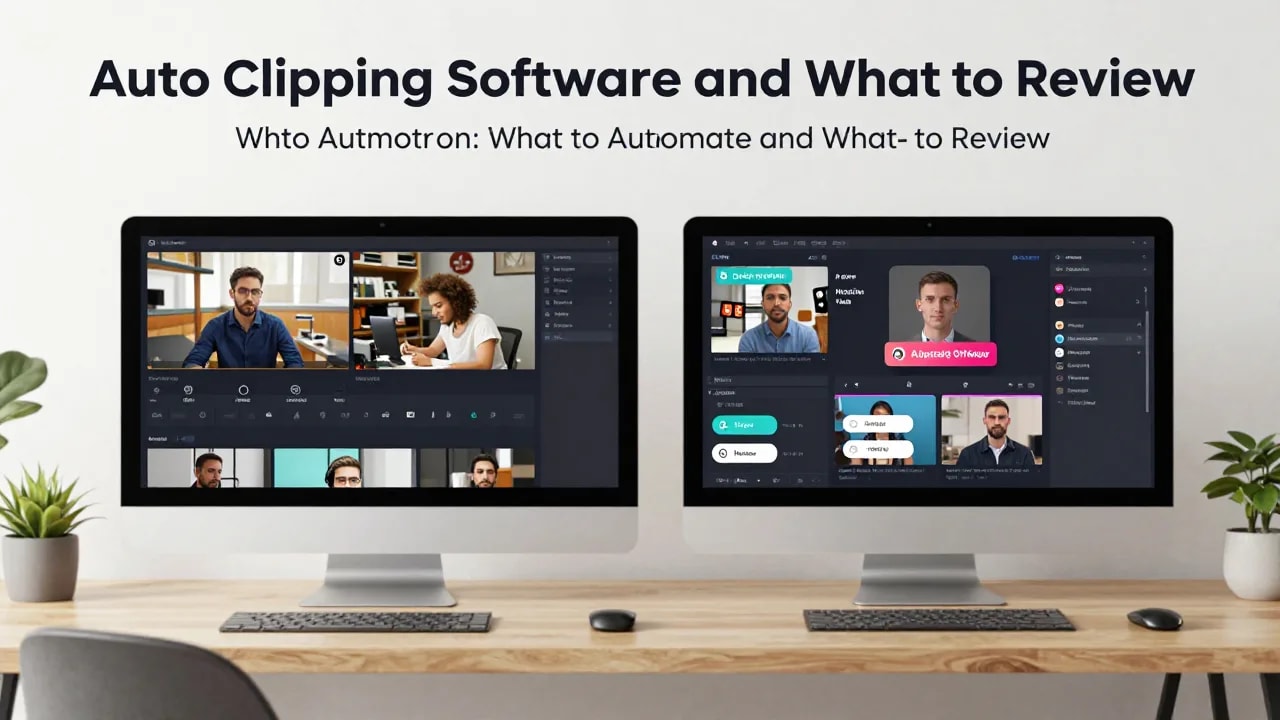
Turning a two-hour podcast or a 40-minute filmed tutorial into vertical social clips often stalls at the same bottleneck: manual timeline scrubbing. Watching raw footage from start to finish just to locate five standalone moments consumes hours before real editing even begins.
Modern auto clipping software solves that discovery problem by acting as an assistive first-draft engine. Instead of replacing human editorial judgment, tools like ClipFlap handle repetitive mechanical prep—such as transcript-based highlight selection, automatic reframing, and word-timed captions—so creators can focus their energy on final clip review and export.
How Auto Clipping Software Works Under the Hood
Understanding how auto clipping software processes long recordings helps set realistic expectations for what happens automatically and where your input matters. Rather than watching video the way a human film editor does, most assistive tools rely on a structured text-and-framing pipeline.
First, speech-to-text transcription converts spoken dialogue into a searchable, time-coded transcript. Next, transcript-based highlight selection scans that text for self-contained explanations, clear topic shifts, and strong opening statements that can stand alone outside the full episode.
Once candidate segments are identified, automatic reframing crops horizontal widescreen footage into a 9:16 vertical aspect ratio centered on active speakers. Finally, the system generates word-timed captions synchronized to the audio track, producing a rough vertical draft ready for human inspection.
If you are new to structured repurposing pipelines, our complete AI clipping workflow guide breaks down how long-form recordings map to short-form publishing formats. Treating this output as a structured starting point keeps production fast without surrendering editorial standards.
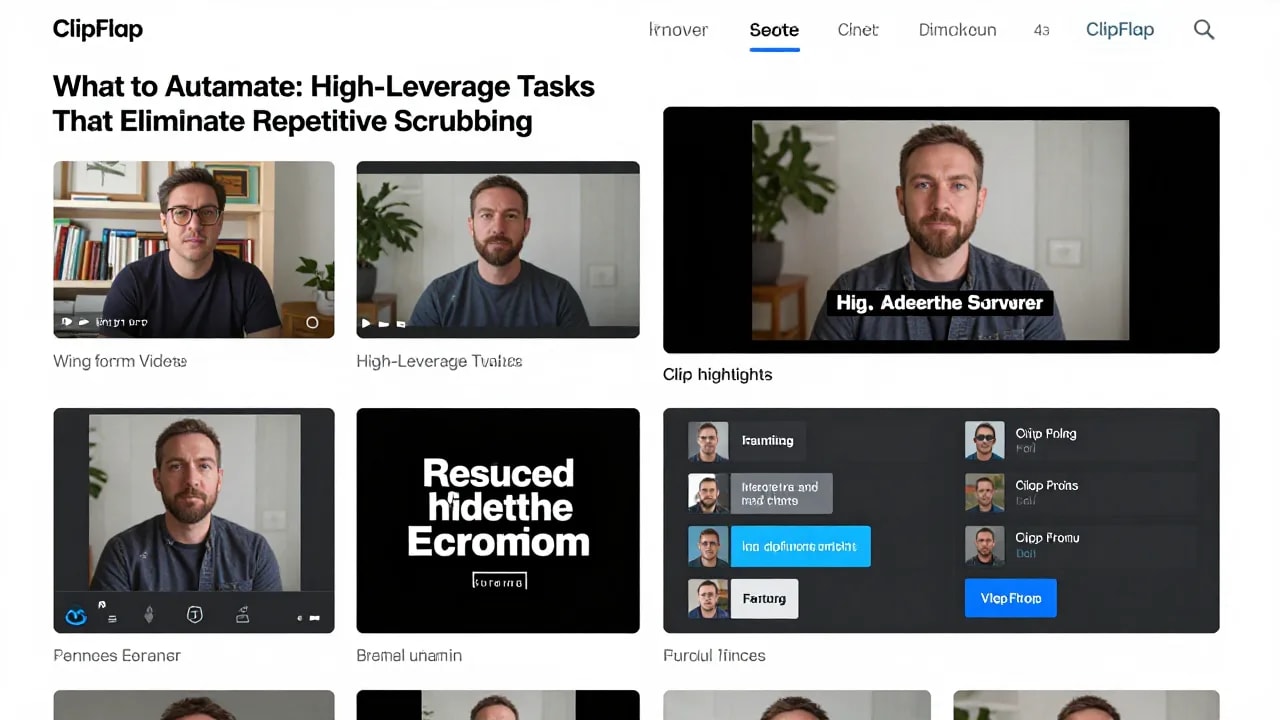
What to Automate: High-Leverage Tasks That Eliminate Repetitive Scrubbing
The biggest return from an assistive AI workflow comes from delegating high-volume, predictable prep work. When software absorbs the tedious scanning and formatting steps, creators avoid timeline fatigue and reach creative decisions faster.
Mechanical Tasks Safe to Delegate
- Transcript-based highlight discovery: Scanning long filmed videos or multi-speaker podcasts to surface self-contained answers, frameworks, and stories without manual playback.
- Rough clip boundary drafting: Grouping contiguous sentences around a single topic so you start with workable start and end timestamps rather than a blank timeline.
- Initial 9:16 vertical reframing: Automatically adjusting widescreen framing to vertical proportions so subjects stay visible on mobile screens.
- Baseline word-timed captioning: Generating synchronized on-screen text across every candidate clip simultaneously instead of transcribing each cut by hand.
Delegating these four tasks removes the blank-page friction of short-form repurposing. Instead of hunting through raw footage for needles in a haystack, you step directly into reviewing curated candidates that already have framing and captions in place.
What to Review Manually: Non-Negotiable Editorial Checkpoints Before Export
While automation excels at pattern recognition and formatting, publishing unreviewed clips directly to social feeds introduces avoidable risks. Automated cuts can begin mid-thought, strip away essential setup context, or display misspelled industry terms in word-timed captions.
Enforcing a disciplined human-in-the-loop editing pass before export protects audience retention and speaker credibility. Every candidate clip should pass four editorial checks before you render the final file.
Pre-Export Clip Review Checklist
- Tighten the opening hook and final takeaway: Trim filler phrases like "as I mentioned earlier" from the first two seconds, and verify that the closing sentence lands cleanly without trailing off.
- Verify context preservation: Confirm that removing preceding or following dialogue does not distort the speaker's point, turn a nuanced caveat into an absolute claim, or leave viewers confused.
- Inspect speaker framing edge cases: Scrub through the vertical crop to ensure active speakers stay centered during leans, multi-person reactions, or physical demonstrations.
- Proofread word-timed captions: Check every line for proper nouns, guest names, brand terminology, acronyms, and punctuation that automated transcription frequently misreads.
Taking two minutes per clip to run through this checklist catches the subtle flaws that separate polished editorial content from raw automated output.
Practical Workflow Examples: Podcasts and Filmed Videos
Different recording formats create distinct framing and pacing challenges. Applying an assistive tool like ClipFlap works best when your manual review steps adapt to how the original video was filmed.
Scenario 1: Multi-Speaker Video Podcast
Suppose you record a 90-minute video podcast with two hosts and a guest. After uploading the horizontal master file, transcript-based highlight selection identifies several self-contained exchanges where the guest explains a specific framework or shares a clear takeaway.
During clip review, you focus first on conversational entry points. If a candidate clip begins with a host's long windup, you trim the start point directly to the sharp question or the guest's core hook, then confirm the ending resolves naturally.
Next, you check automatic reframing across speaker handoffs and verify that guest names and niche terms appear accurately in the word-timed captions before export. For deeper workflow tips on turning full podcast episodes into vertical clips, aligning audio transitions with clean visual cuts makes the biggest difference.
Scenario 2: Solo Filmed Educational Video
Now consider a 25-minute filmed educational breakdown recorded in a single-camera setup. Here, the presenter walks through three core concepts while occasionally gesturing toward physical equipment or visual notes off to the side.
The software surfaces standalone explanations for each concept and applies initial vertical framing and word-timed captions. In your review pass, you pay special attention to speaker framing whenever the presenter moves or points, ensuring critical visual context stays inside the 9:16 frame before exporting.
Honest Limitations of Automatic Clipping Software
Evaluating auto clipping software realistically requires acknowledging what current speech-and-framing pipelines cannot judge reliably on their own. Knowing these boundaries prevents frustration and reinforces why human oversight remains essential.
- Unspoken visual humor and dry sarcasm: Transcript analysis evaluates text patterns, meaning it can miss deadpan delivery, visual reactions, or moments whose meaning depends entirely on facial expression.
- Brand sensitivity and reputational nuance: Automated selection cannot weigh whether a candid remark sounds out of character or misleading when separated from a longer discussion.
- Erratic camera motion and wide group shots: Rapid handheld movement, wide panel layouts, or presenters stepping across a room can challenge automatic reframing and require manual framing adjustments.
- Campaign-level editorial strategy: Deciding which ideas align best with an upcoming product launch, audience question, or content series requires human strategic context.
Recognizing these limitations does not diminish the value of automation; it simply clarifies where software stops and editorial craft begins.
How to Evaluate Auto Clipping Software: Practical Selection Criteria
When comparing auto clipping software options, look past vague promises of zero-touch automation. Focus instead on how smoothly the platform supports rapid human-in-the-loop editing once the initial draft is generated.
Key Criteria for Buyers
- Transcript-based highlight visibility: Look for tools that link candidate clips directly to the full transcript so you can see surrounding context before deciding what to keep.
- Precision trim controls during clip review: Ensure you can easily tighten start and end boundaries to rescue strong hooks or clean up abrupt endings.
- Dependable automatic reframing: Test how cleanly the tool converts horizontal recordings into vertical framing when speakers shift posture or trade dialogue.
- Editable word-timed captions: Confirm that correcting spelling, proper nouns, and line breaks is fast and straightforward inside the review workspace.
- Clean export workflow: Verify that moving from final review to downloading vertical files requires minimal friction so batch repurposing stays sustainable.
The best assistive workflow is one that gives you fast automated drafts without locking you out of fine-grained editorial adjustments.
Frequently Asked Questions
Can I publish clips from auto clipping software without reviewing them manually?
Manual review before export is strongly recommended. While auto clipping software accelerates rough highlight discovery, vertical framing, and captioning, human inspection prevents awkward mid-thought openings, missing setup context, and transcription typos from reaching your audience.
How does automatic clipping software identify highlights in a long video or podcast?
Most tools rely on transcript-based highlight selection. After converting spoken audio into text, the software analyzes sentence structure, topic boundaries, and self-contained explanations to surface segments that make sense on their own as short-form clips.
What happens during automatic reframing, and when does it need manual adjustment?
Automatic reframing crops standard horizontal widescreen video into a 9:16 vertical frame centered on the active speaker. It works smoothly for standard talking-head shots, but wide multi-speaker layouts or off-camera physical demonstrations benefit from manual framing checks during clip review.
Are word-timed captions accurate enough to export without proofreading?
Automated word-timed captions capture everyday conversational speech reliably, yet they frequently stumble on proper nouns, guest names, brand terms, and specialized jargon. A quick caption proofread during clip review ensures on-screen text looks credible before you publish.
Ready to replace hours of manual timeline scrubbing with a structured assistive workflow? Try ClipFlap's AI clip generator to convert your long filmed videos and podcasts into vertical drafts with transcript-based highlight selection, automatic reframing, and word-timed captions—then refine and export your best moments with full editorial control.
Related reading
- AI Cutting Explained: Methods, Mechanics, and Editorial Checkpoints
Understand how AI cutting processes long-form footage, where automated edits fall short, and the editorial review checklist needed before publishing.
- How an Auto Clipper Works: From Raw Footage to Review-Ready Shorts
Learn how an auto clipper ingests long video, selects highlights, reframes to 9:16, and generates captions, plus essential human review steps.
- Clipping Apps Evaluation Guide: How to Choose the Best Repurposing Tools
Compare modern clipping apps for repurposing long-form video into social clips. Learn key features: transcript navigation, reframing, and captions.
Try the ClipFlap AI clip maker →
Try it on your own episode
10 free minutes of processing, no card required. Processing time varies with source length and queue load; review each clip before publishing.