Clipping Apps Evaluation Guide: How to Choose the Best Repurposing Tools
Compare modern clipping apps for repurposing long-form video into social clips. Learn key features: transcript navigation, reframing, and captions.
Updated By ClipFlap editorial team
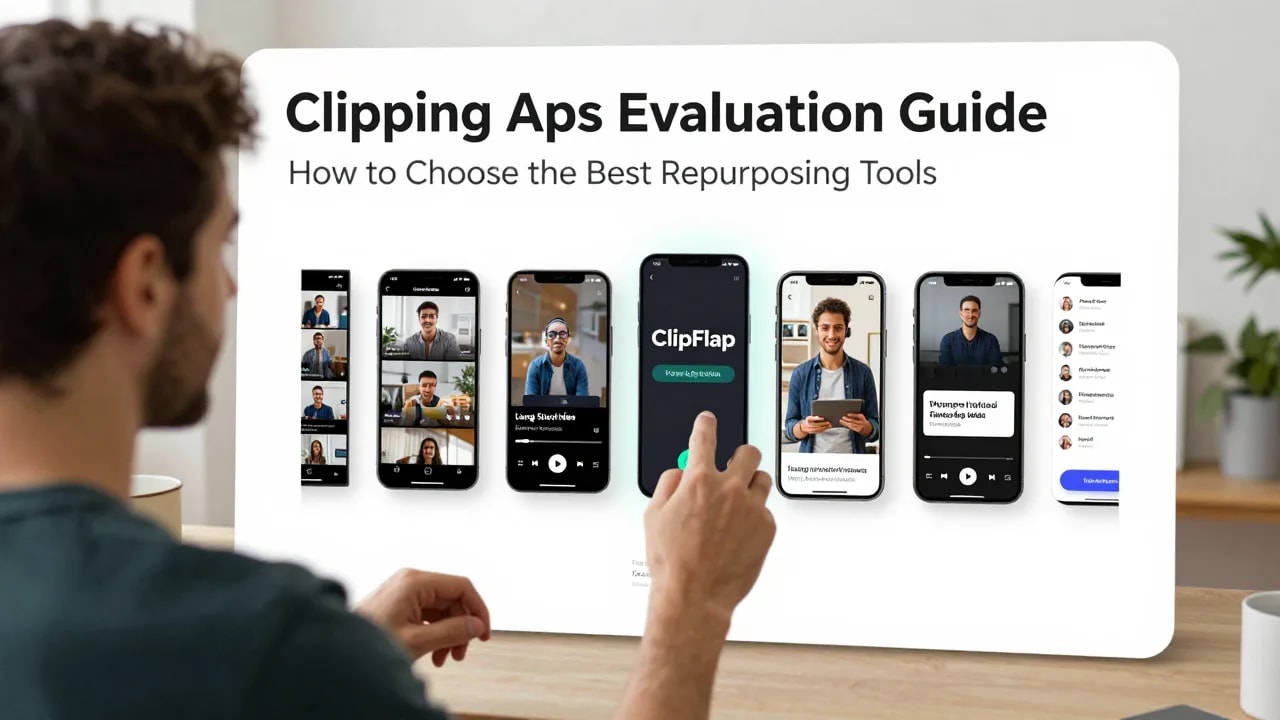
Repurposing long-form video into engaging short-form content has become an operational necessity for creators, media teams, and podcasters. However, manually scanning through hour-long interviews or webinars to cut compelling moments eats up hours of editorial time. Modern clipping apps address this bottleneck by processing raw footage and identifying standalone soundbites for platforms like TikTok, YouTube Shorts, and Instagram Reels.
Selecting the right software requires an understanding of underlying technical workflows rather than surface-level marketing claims. Whether you evaluate standalone video clipping software or complete podcast clipping apps, this framework breaks down the essential capabilities—from transcript-based selection to speaker reframing—so you can make an informed decision.
Core Mechanics: How Modern Video Clipping Apps Process Long-Form Content
Traditional video editing requires an editor to import large media files, build proxy workflows, and scrub timelines manually to set in and out points. In contrast, modern social video clipping tools ingest long-form recordings and parse both audio and visual data to streamline the cutting process.
At a functional level, an automated workflow follows several distinct steps:
- Audio Ingestion and Transcription: The tool ingests spoken dialogue, converting speech to synchronized text using automated speech recognition models.
- Context and Topic Parsing: Assistive algorithms analyze sentence structure, pauses, and rhetorical shifts to identify self-contained ideas or hooks.
- Visual Geometry Analysis: Computer vision models detect human faces, torso positions, and framing dynamics across the source footage.
- Clip Segmentation: The engine marks preliminary start and end timestamps, packaging the snippet with associated transcript data.
While marketing for an auto clip generator might imply a one-click replacement for video editors, these tools operate as assistive AI editing layers. Their primary purpose is accelerating the discovery and formatting stages, leaving narrative polish and quality control to human judgment.
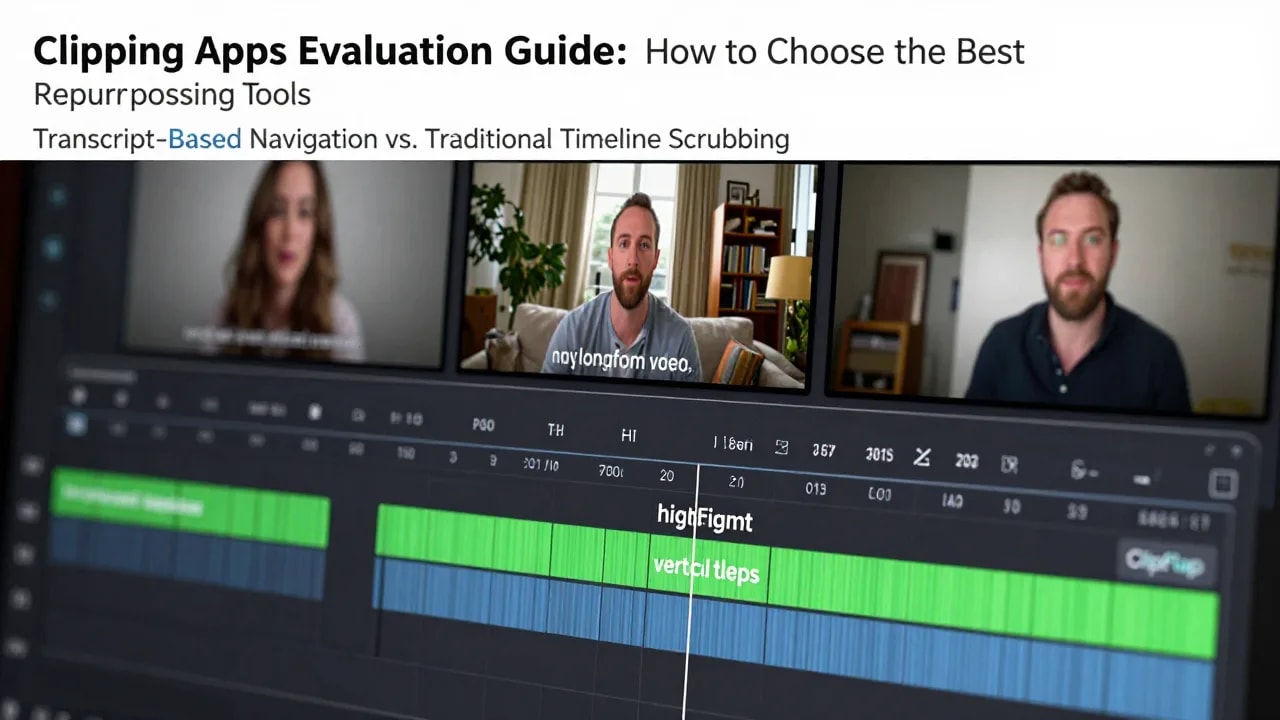
Transcript-Based Navigation vs. Traditional Timeline Scrubbing
Finding strong soundbites on a standard timeline is tedious. Scrubbing through hours of video waveforms often results in missed nuances or wasted time reviewing dead air. Transcript-based highlight selection fundamentally alters this experience by turning video into an editable text document.
The Advantage of Text-Led Selection
When using a long video to short clips app with transcript navigation, editors can skim written passages faster than listening to audio at double speed. Selecting a paragraph automatically isolates the corresponding video segment. If a speaker stumbles over a sentence or includes conversational filler, editing the text can trim those exact video frames without manually slicing tracks.
Critical Transcript Capabilities to Compare
- Timestamp Alignment Precision: The transcription engine must align text to video at the phoneme or word level. Weak alignment causes clipped syllables at the head or tail of a snippet.
- Search and Keyword Filtering: Practical software allows users to search for thematic terms, speaker names, or specific questions asked during a conversation.
- Filler Word Removal Options: The ability to highlight and strip "um," "uh," or false starts directly from the transcript helps tighten the final pacing.
For teams comparing platforms, reading our guide to choosing an AI video clipping tool offers deeper technical comparisons of transcript search speeds and parsing models.
Visual Reframing: Speaker Tracking and Aspect Ratio Conversion
Horizontal 16:9 footage recorded on cameras or remote recording platforms does not naturally map onto vertical video 9:16 displays. Simply cropping the center of the frame often cuts active speakers out of view whenever they move or when multiple guests interact.
+---------------------------------------------+
|                  16:9 Canvas                |
|   [Host]                      [Guest]       |
|   +-----------+            +-----------+    |
|   | 9:16 Crop |            | 9:16 Crop |    |
|   | Tracking  |            | Tracking  |    |
|   +-----------+            +-----------+    |
+---------------------------------------------+
Effective clipping apps utilize computer vision for automatic reframing. This system calculates the position of the speaker's face and smoothly repositions the vertical window to follow their movements across the screen.
Reframing Layout Variations
When evaluating visual reframing engines, verify how the software accommodates different visual formats:
- Single-Speaker Tracking: The crop dynamically centers on one individual, using smooth pan adjustments rather than abrupt jumps.
- Split-Screen Stacks: For remote interviews or multi-mic setups, the system stacks the host and guest vertically in a shared 9:16 canvas.
- Active Speaker Switching: In dynamic panel discussions, the camera view cuts to whoever is actively speaking based on audio cues and mouth movement.
Without robust speaker tracking, editors are forced to manually keyframe positions across dozens of clips—negating the time saved by automated selection.
Captions and Typography: Assessing Word-Timed Precision and Styling
A large portion of mobile video is consumed in sound-sensitive environments, making readable on-screen subtitles mandatory for short-form repurposing. High-quality clipping software generates word-timed captions that animate or change color in sync with spoken dialogue.
Caption Evaluation Checklist
Before selecting a tool, test its caption generator against this functional checklist:
- Word-Level Timing: Subtitles must update smoothly word-by-word rather than flashing massive paragraphs that clutter the vertical display.
- In-App Correction Tools: Can you easily correct misspelled proper nouns, brand names, or slang directly within the transcript viewer?
- Custom Styling Controls: Does the software permit changes to font families, text outlines, background banners, and safe-zone positioning?
- Punctuation and Line Breaks: The engine should automatically format sentences into short, readable visual chunks (typically 2 to 5 words per line) to keep viewer attention focused.
Desynchronized or poorly styled captions diminish content authority. If an app requires you to export footage to an external subtitle editor just to fix basic capitalization, it slows down your production pipeline.
Review and Editing Controls: Why Assistive AI Still Needs Human Oversight
Algorithms are effective at recognizing patterns, voice inflections, and pauses. However, they lack human context. An automated system cannot independently verify whether a joke landed, whether an argument was fully resolved, or whether a soundbite requires prerequisite context to avoid misrepresenting the speaker.
Because of this limitation, the most reliable clipping software incorporates a deliberate manual review workflow. You should never publish an automated clip without a quick human check.
Essential In-App Adjustment Tools
Look for tools that offer clear review interfaces rather than completely closed "black box" rendering pipelines:
- Handle Adjustment: Granular timeline handles at the beginning and end of each clip to adjust audio heads and tails, preventing cut-off sentences.
- B-Roll and Overlay Integration: Basic controls to drop in supplemental imagery, logos, or chapter title cards over complex explanations.
- Speaker Assignment: The ability to manually reassign a framing box if the computer vision model accidentally locks onto a background object or inactive panelist.
By viewing automated features as an initial editorial draft, content managers can achieve consistent output quality while saving hours of manual assembly.
Export Options and Workflow Integration for Social Platforms
Generating quality clips is only helpful if the final assets transfer smoothly into your distribution channels. Reviewing the export settings and rendering flexibility of your software ensures your files meet platform-specific technical standards without post-export re-encoding.
Technical Export Considerations
- Resolution and Bitrates: Confirm whether the system exports clean 1080x1920 MP4 files with appropriate bitrates for social platforms. Overly compressed exports cause pixelation, while bloated files slow down uploads.
- Frame Rate Consistency: Ensure the software preserves source frame rates (such as 24fps or 30fps) rather than forcing variable frame rates that cause audio drift on third-party players.
- Burned-in vs. Sidecar Subtitles: Verify whether the platform burns captions directly into the visual stream or allows downloading separate
.srtor.vttfiles for native caption toggling.
Teams establishing a weekly podcast publishing schedule can learn how to structure end-to-end workflows in our breakdown of podcast to clips repurposing strategies.
Frequently Asked Questions
What are the most critical features to compare in video clipping apps?
The most critical features include transcript-based highlight selection, precise speaker-tracking reframing, word-timed animated captions, and flexible manual review controls. These technical elements eliminate the most time-consuming parts of the video repurposing workflow.
Can clipping apps reliably detect the best moments without human guidance?
Automated tools can detect standalone topics, vocal energy shifts, and natural pauses, but they cannot replace editorial context. Human review is essential to verify that the clip accurately reflects the original point and provides sufficient narrative value for the audience.
How do automated clipping tools handle multi-speaker framing in horizontal video?
Advanced systems use facial recognition and computer vision to identify each speaker. The software can dynamically crop to active speakers or generate a stacked split-screen layout, keeping all participants visible within a vertical 9:16 canvas.
Why should creators manually review clips before publishing to social channels?
Manual review prevents awkward jump cuts, clipped syllables, typographical errors in subtitles, and contextually misleading excerpts. Spending two minutes refining clip handles and captions ensures higher production standards and brand safety.
To see how transcript-driven editing, automatic reframing, and word-timed subtitles streamline your short-form video workflow, explore ClipFlap's AI Clip Generator and simplify your repurposing pipeline today.
Related reading
- Auto Clipping Software: What to Automate and What to Review
Learn how auto clipping software speeds up vertical video repurposing, which editing tasks to automate, and what to review manually.
- AI Cutting Explained: Methods, Mechanics, and Editorial Checkpoints
Understand how AI cutting processes long-form footage, where automated edits fall short, and the editorial review checklist needed before publishing.
- How an Auto Clipper Works: From Raw Footage to Review-Ready Shorts
Learn how an auto clipper ingests long video, selects highlights, reframes to 9:16, and generates captions, plus essential human review steps.
Try the ClipFlap AI clip maker →
Try it on your own episode
10 free minutes of processing, no card required. Processing time varies with source length and queue load; review each clip before publishing.